As an Amazon Associate, we earn from qualifying purchases. Some links may be affiliate links at no extra cost to you. Although our opinions are based on curated research, we haven't used these products. Articles generated with AI.

How Do I Prevent Carpal Tunnel From Keyboard Use?

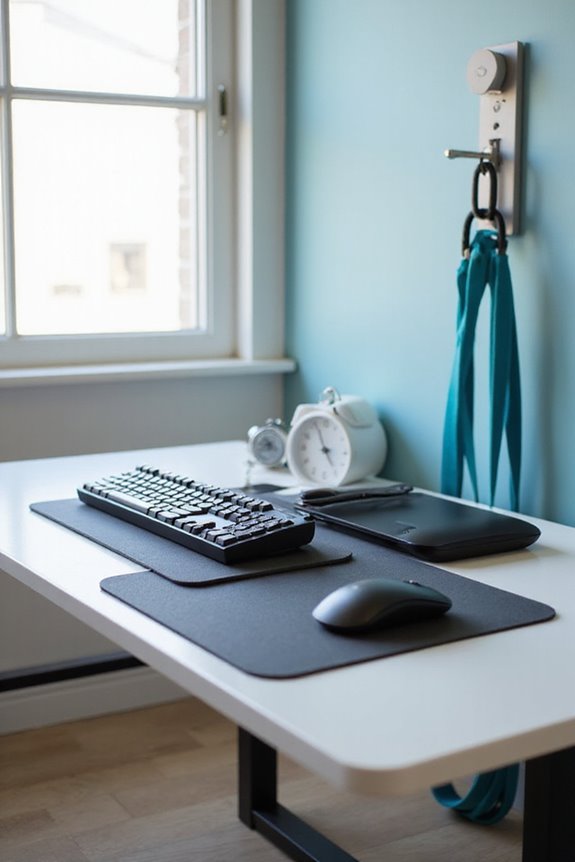
To prevent carpal tunnel syndrome from keyboard use, I focus on ergonomics and posture. I position my keyboard at elbow height, keeping my wrists straight. I take short breaks every 30 to 60 minutes, allowing my hands to rest and stretch. Incorporating task variation also helps reduce strain on my muscles. Additionally, I perform wrist rotations and finger stretches regularly. These practices promote overall wrist health, and there’s more to explore about optimizing my workspace.
Key Takeaways
- Maintain ergonomic keyboard positioning to ensure natural hand and wrist alignment, reducing strain during use.
- Incorporate regular breaks and microbreaks to alleviate tension and prevent repetitive strain injuries.
- Perform wrist rotations and finger stretches every hour to maintain flexibility and reduce stiffness.
- Adjust chair height and monitor position to promote proper posture and spine alignment during typing.
- Utilize ergonomic accessories, like split keyboards and adjustable trays, to enhance comfort and minimize wrist movement.
Understanding Carpal Tunnel Syndrome
You may be interested



Carpal tunnel syndrome (CTS) is a condition that affects many people, particularly those who engage in repetitive wrist movements. It occurs when the median nerve gets compressed within the carpal tunnel, leading to symptoms like numbness, tingling, and pain in the wrist and hand. Common risk factors include occupations that require repetitive wrist actions, certain health conditions like diabetes, and even hormonal changes during pregnancy.
To manage symptoms effectively, early intervention is vital. This may involve lifestyle changes, physical therapy, or the use of wrist splints. Understanding these risk factors and symptoms is essential for preventing progression and potential long-term nerve damage. If you notice any signs, consulting a healthcare professional can provide guidance on suitable management strategies.
Importance of Ergonomic Arrangements
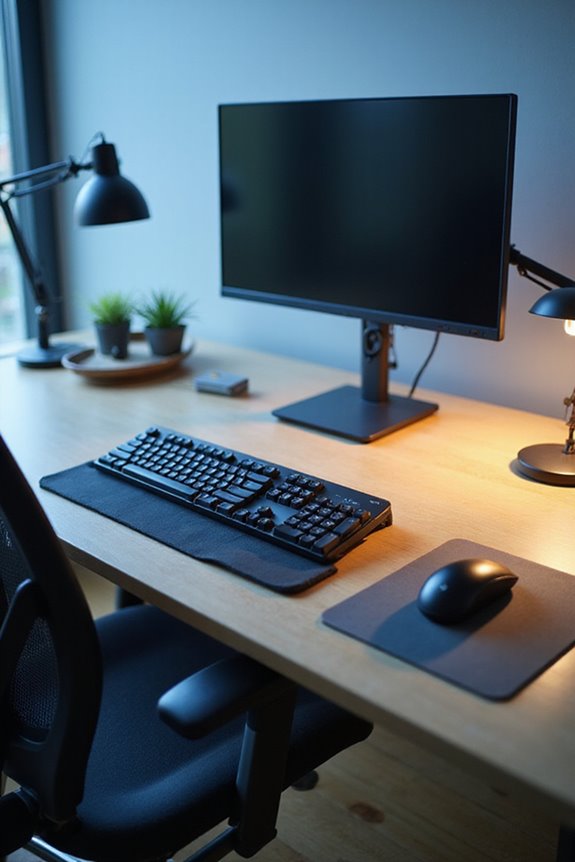
While it might seem minor, the arrangement of your workspace plays an essential role in preventing strain and discomfort during keyboard use. Proper keyboard positioning is vital, as it helps promote a natural hand and wrist alignment. I’ve found that using ergonomic accessories, like adjustable keyboard trays, can greatly enhance comfort while typing.
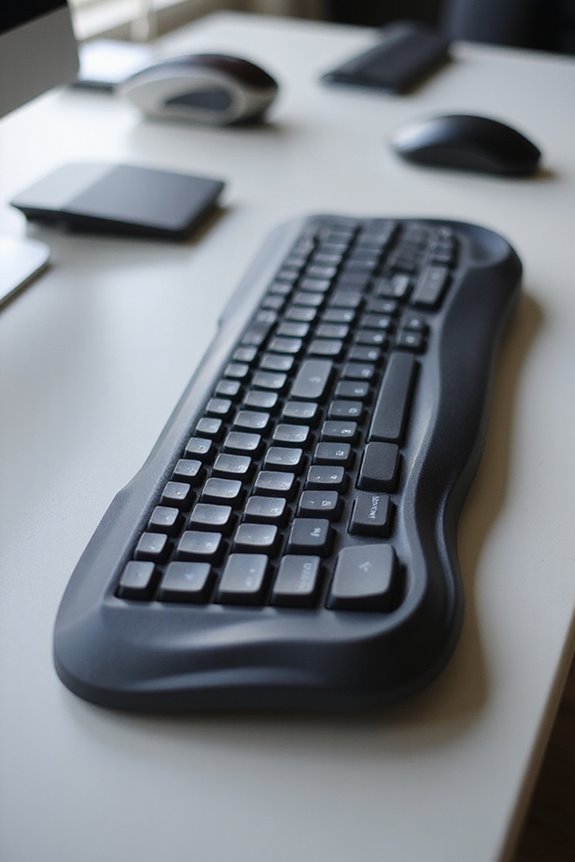
Consider investing in an ergonomic keyboard designed to minimize wrist movement. A split design allows my hands to rest in a more natural position, reducing strain. Additionally, adjusting the height and angle of my keyboard can prevent uncomfortable wrist flexion. By prioritizing ergonomic arrangements, I can create a workspace that supports my health and productivity, ultimately reducing the risk of carpal tunnel syndrome. Furthermore, incorporating features such as adjustable lumbar support in my office chair can further enhance overall comfort during long hours of work.
Recommended Products

Large & Practical Size – This full-size keyboard tray measures 25" × 9.84" (635 × 250 mm). It is ideally suited for keyboards measuring approximately 17.3" × 5.5" (440 × 140 mm) or smaller, with additional space for a mouse. Before purchasing, please compare your keyboard dimensions with the tray size and make sure you are comfortable with the remaining space available for mouse use. An included wrist rest provides added comfort during use. (Item weight: 10 lbs.)

[Ergonomic Sliding Keyboard Tray] Enjoy a more ergonomic typing experience that reduces shoulder and wrist strain. The tray slides out smoothly and is easy to install, providing stable support for daily use. Keep your keyboard and mouse organized for a clean, efficient workspace at home, office, or gaming desk.

❗️ CHECK DESK COMPATIBILITY BEFORE PURCHASE – This under-desk keyboard tray won’t work with desks that have curved, beveled, or rounded edges, or crossbars/support beams underneath. Please check the product images to ensure your desk has a flat, unobstructed underside for clamp installation
Maintaining Proper Posture

Maintaining proper posture is essential for preventing discomfort during prolonged keyboard use, especially since improper alignment can lead to strain and potential injury. I always make sure my spine alignment is correct by sitting against the chair back for support. I keep my shoulders relaxed and squared, avoiding any tendency to roll them forward or slouch, which can create pressure on my neck and arms. My head remains in line with my spine, ensuring my upper back stays mostly straight. I also adjust my chair height so my knees sit below my hips and my screen is at eye level. This way, my arms rest naturally at about a 90° angle, promoting overall comfort and reducing strain while I work. Additionally, using a posture corrector can help reinforce proper alignment during long hours at the keyboard.
Recommended Products

Say Hello to a Pain-Free Life- The Comfy Brace posture corrector aims to relieve chronic back pain and make long working or standing hours a breeze to get through. By aligning properly your posture, it takes pressure off of key areas, thus alleviating back, neck, shoulder and clavicle pain.

Excellent Support & Relief Pain: Say goodbye to neck, shoulder and back pain with our upgraded full back posture corrector! Features 5 flexible ABS support rods for stronger and more stable support. The back brace corrects spinal curvature, relieves neck and shoulder pressure, keeps your back straight, effectively relieves upper and lower back pain, promotes spinal health, and helps you develop good sitting and standing posture, fully protecting your spine for comfort and health

Gentle Cross-Back Support for Everyday Posture Improvement:This posture corrector bra features an ergonomic criss cross back design that delivers gentle, balanced back support to help reduce slouching and encourage natural upright posture during daily activities. As a comfortable posture support bra, it provides steady tension without restrictive squeezing, suitable for all-day wear at home, work or casual outings
Task Variation and Break Frequency
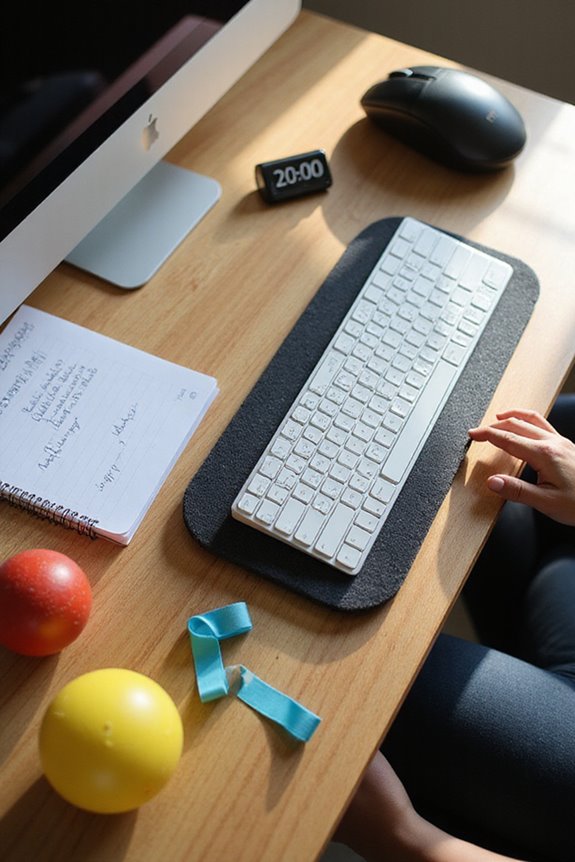
To effectively prevent discomfort and potential injury during keyboard use, it’s essential to incorporate task variation and regular breaks into your work routine. Implementing task rotation helps distribute the workload across different muscle groups, reducing repetitive strain. I make it a point to alternate between typing, data entry, and non-computer tasks, like attending meetings or making phone calls.
Break scheduling is equally important; I take short breaks every 30–60 minutes and microbreaks of 20-30 seconds every 10-15 minutes to relieve tension. During these breaks, I engage in hand and wrist stretches or switch to non-hand-intensive activities. This conscious effort guarantees I avoid long periods of uninterrupted keyboard use, ultimately minimizing my risk of developing carpal tunnel syndrome.
Impact of Keyboard and Mouse Use
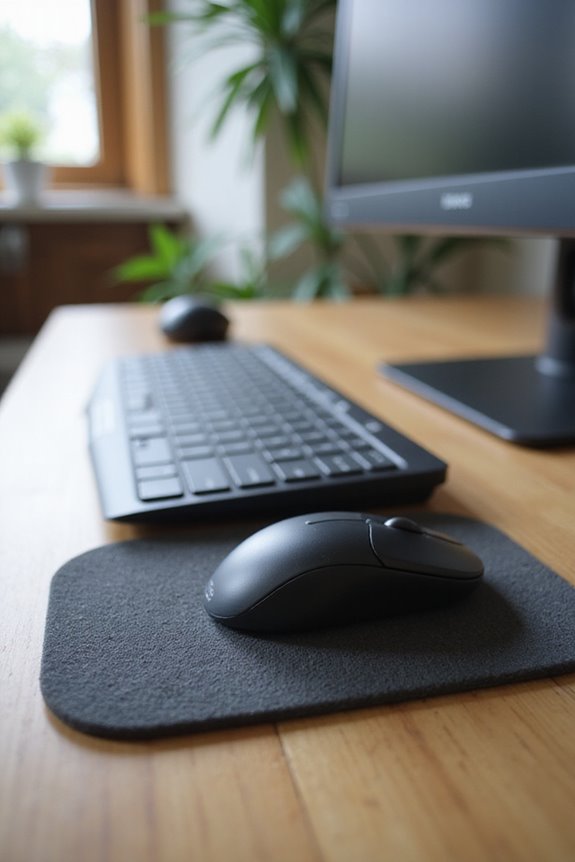
Although keyboard use alone typically doesn’t elevate the risk of carpal tunnel syndrome (CTS) substantially, the combination of keyboard and mouse use can have a more pronounced impact on hand and wrist health. While I often find that typing doesn’t cause much keyboard fatigue, the prolonged use of a mouse can lead to issues. Studies show that using a mouse for more than 20 hours a week considerably increases CTS risk. This is primarily due to repetitive motions and poor mouse grip, which can contribute to nerve compression. As a result, it’s essential to monitor your mouse usage and implement ergonomic practices. Balancing keyboard and mouse tasks with regular breaks can help mitigate potential risks and maintain wrist health.
Recommended Products
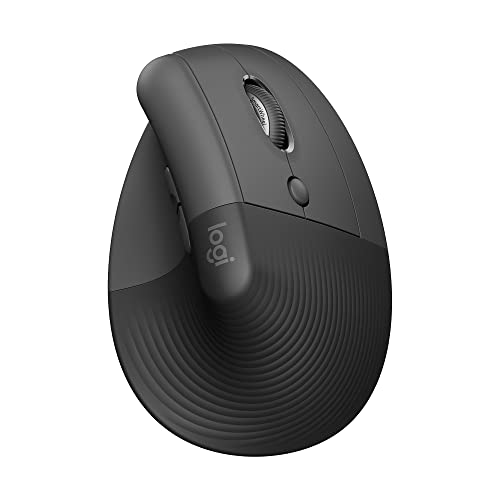
Lift yourself up: When the desk life gets you down, lift yourself up with Logitech Lift Vertical Ergonomic Mouse - a great fit for small to medium right hands

Experience enhanced comfort and productivity with the Anker 2.4G Wireless Vertical Ergonomic Optical Mouse. Its scientifically designed ergonomic structure promotes a healthy neutral "handshake" wrist and arm position, reducing strain and amplifying your productivity.(Uses 2.4 GHz wireless via a USB receiver, not Bluetooth.)
![J-Tech Digital Wired Ergonomic Vertical USB Mouse with Adjustable Sensitivity (600/1000/1600 DPI), Scroll Endurance, Removable Palm Rest & Thumb Buttons [V628]](https://m.media-amazon.com/images/I/31TK7VJy5+L._SL500_.jpg)
Stretching Exercises for Prevention

Incorporating stretching exercises into your routine can greatly reduce the risk of developing carpal tunnel syndrome (CTS) related to keyboard and mouse use. Regularly performing wrist rotations and finger spreads helps maintain flexibility; I recommend doing these four times every hour. Additionally, the median nerve glide can alleviate tension—simply touch your sternum and extend your wrist until you feel a pull. Intrinsic stretches, counter resistance, and the ball squeeze are excellent for strengthening hand muscles. Every couple of hours, I find the shake technique effective for relieving built-up tension. Finally, engaging in a forearm plank can enhance forearm strength, supporting overall wrist health. Prioritize these stretches to keep your hands and wrists feeling their best.
Recommended Products

𝗜𝗻𝗰𝗹𝘂𝗱𝗲𝗱 𝗖𝗼𝗻𝘁𝗲𝗻𝘁 — Hand exercise ball (2.15 x 1.63’’) x 3, hand grip ring (2.75’’ diameter) x 2, finger stretcher (3.92 x 1.9’’) x 3, storage bag x 1, instruction manual x 1 and gift box x 1.

All-Round: The 9 inch exercise ball is one of the essential Exercise Ball Accessories.The pilates ball 9 inch strengthens key muscles. The coregeous ball yoga enhances core health. The yoga ball small improves endurance flexibility. The gertie balls are used in rehabilitation strengthening. The mini yoga ball is used in toning exercise programs and relieve back pain and tension at work.

ENHANCED MUSCLE ENGAGEMENT: Enjoy a more effective workout with these push-up handles featuring a rotating handle design with durable steel ball bearings for smooth and effortless handle rotation for more natural movement during exercise
Proper Workstation Setup
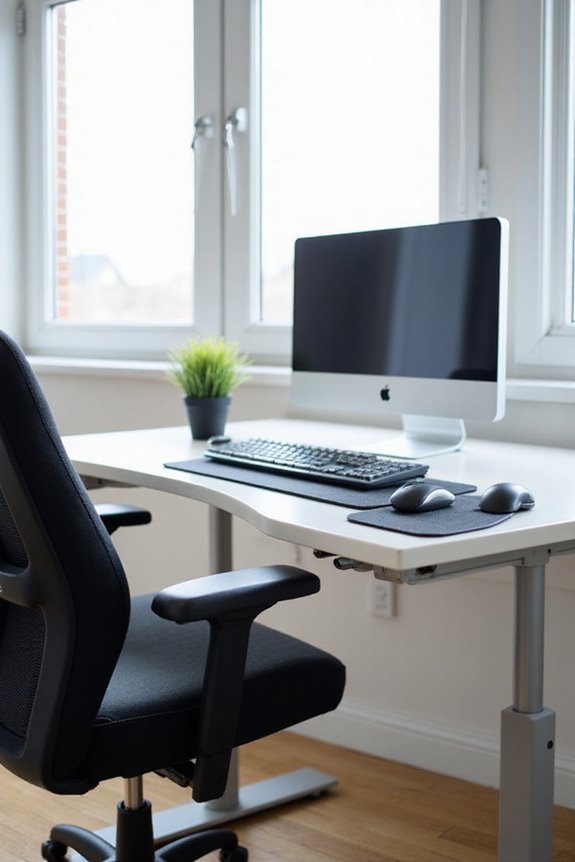
A well-designed workstation can considerably impact your comfort and health while using a keyboard. First, chair adjustments are essential; verify your chair height allows your feet to rest flat on the floor, and your arms should form a 90-degree angle at the elbows when typing. Next, monitor height matters—position the top of the screen at or just below eye level, about an arm’s length away, to reduce neck strain.
Additionally, make certain your keyboard is at elbow height or slightly below, keeping your wrists flat. A clear workspace is critical, allowing for easy access to your keyboard and mouse without awkward movements. Finally, consider ergonomic accessories to maintain proper wrist alignment and support throughout your typing sessions. Incorporating comfort and support can significantly enhance your typing experience and help prevent discomfort.
Recommended Products

【2-in-1 Keyboard Stand with Wrist Rest】Tired of constantly adjusting a misaligned wrist rest that slides out of place? Vaydeer keyboard wrist rest revolutionary one-piece design fuses the keyboard stand and wrist rest into a single, cohesive unit. This keyboard pad eliminates the frustrating gaps between your keyboard and cushion, ensuring a fluid typing motion without any interruptions.

Ergonomic L-Shaped Elbow Pad: The L-shaped design snugly wraps around desk edges to provide comfortable arm and elbow support, reducing pressure and discomfort from prolonged contact while effectively relieving pain(11.8*3.9*1.3inch)

[All-in-One Keyboard Stand Pad and Wrist Rest] This wrist rest for keyboard offers two tilt options (7° & 13.3°) for optimal ergonomic comfort. The angled design reduces strain on your wrists, forearms and elbows, helps treat and prevent carpal tunnel syndrome—perfect for long work or gaming sessions
Implementing Workplace Ergonomics Policies
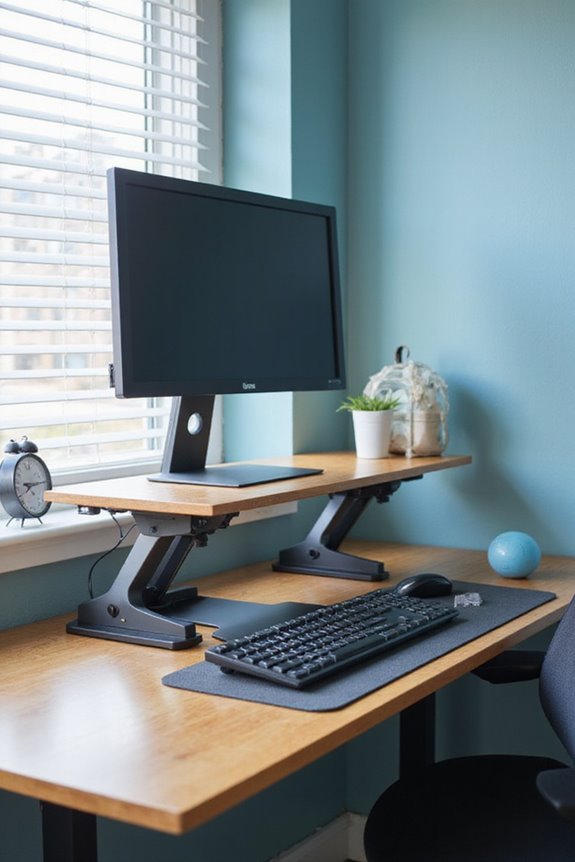
When it comes to fostering a healthier work environment, establishing ergonomic policies can greatly reduce the risk of musculoskeletal disorders, including carpal tunnel syndrome. First, conducting regular ergonomic assessments helps identify potential issues at workstations. By optimizing chair and desk heights, we can guarantee comfort and reduce strain.
Next, gathering employee feedback is essential; it allows us to understand their challenges and make necessary adjustments. Implementing ergonomic accessories, like wrist rests and ergonomic keyboards, further minimizes wrist strain. Additionally, promoting regular breaks and stretching exercises can alleviate repetitive strain injuries. Ergonomic footrests can also enhance overall comfort and support during prolonged sitting. Educating employees about proper ergonomic practices will empower them to take responsibility for their health. Together, these measures create a safer, more productive workplace for everyone.
Frequently Asked Questions
Can Wrist Braces Help Prevent Carpal Tunnel Syndrome?
I’ve found that wrist braces can provide great wrist support, especially with their ergonomic design. They help alleviate pressure and discomfort, making daily tasks easier while I focus on preventing carpal tunnel syndrome symptoms.
Are There Specific Exercises to Strengthen Wrist Muscles?
I’ve found that incorporating wrist stretches and grip strength exercises really helps. Regularly practicing wrist curls and squeezing a rubber ball keeps my wrists strong and flexible, making a noticeable difference in my daily activities.
How Often Should I Take Breaks While Typing?
I’m telling you, if I don’t take breaks, my hands feel like they’re on fire! I’ve learned that adjusting break frequency and maintaining proper typing posture keeps me comfortable and productive throughout the day.
Does Typing Speed Affect the Risk of Carpal Tunnel Syndrome?
I’ve found that typing speed can impact the risk of carpal tunnel syndrome. By using proper typing techniques and ergonomic keyboards, I can minimize strain and reduce the likelihood of developing symptoms related to CTS.
Can Carpal Tunnel Syndrome Develop From Smartphone Use?
Oh, absolutely! It’s like my hands are on a rollercoaster with every swipe! Poor smartphone ergonomics and excessive touch screen usage can definitely contribute to carpal tunnel syndrome. I’m always mindful of my grip and breaks.
{
“@context”: “https://schema.org”,
“@type”: “FAQPage”,
“mainEntity”: [
{
“@type”: “Question”,
“name”: “Can Wrist Braces Help Prevent Carpal Tunnel Syndrome?”,
“acceptedAnswer”: {
“@type”: “Answer”,
“text”: “I’ve found that wrist braces can provide great wrist support, especially with their ergonomic design. They help alleviate pressure and discomfort, making daily tasks easier while I focus on preventing carpal tunnel syndrome symptoms.”
}
},
{
“@type”: “Question”,
“name”: “Are There Specific Exercises to Strengthen Wrist Muscles?”,
“acceptedAnswer”: {
“@type”: “Answer”,
“text”: “I’ve found that incorporating wrist stretches and grip strength exercises really helps. Regularly practicing wrist curls and squeezing a rubber ball keeps my wrists strong and flexible, making a noticeable difference in my daily activities.”
}
},
{
“@type”: “Question”,
“name”: “How Often Should I Take Breaks While Typing?”,
“acceptedAnswer”: {
“@type”: “Answer”,
“text”: “I’m telling you, if I don’t take breaks, my hands feel like they’re on fire! I’ve learned that adjusting break frequency and maintaining proper typing posture keeps me comfortable and productive throughout the day.”
}
},
{
“@type”: “Question”,
“name”: “Does Typing Speed Affect the Risk of Carpal Tunnel Syndrome?”,
“acceptedAnswer”: {
“@type”: “Answer”,
“text”: “I’ve found that typing speed can impact the risk of carpal tunnel syndrome. By using proper typing techniques and ergonomic keyboards, I can minimize strain and reduce the likelihood of developing symptoms related to CTS.”
}
},
{
“@type”: “Question”,
“name”: “Can Carpal Tunnel Syndrome Develop From Smartphone Use?”,
“acceptedAnswer”: {
“@type”: “Answer”,
“text”: “Oh, absolutely! It’s like my hands are on a rollercoaster with every swipe! Poor smartphone ergonomics and excessive touch screen usage can definitely contribute to carpal tunnel syndrome. I’m always mindful of my grip and breaks.”
}
}
]
}