As an Amazon Associate, we earn from qualifying purchases. Some links may be affiliate links at no extra cost to you. Although our opinions are based on curated research, we haven't used these products. Articles generated with AI.

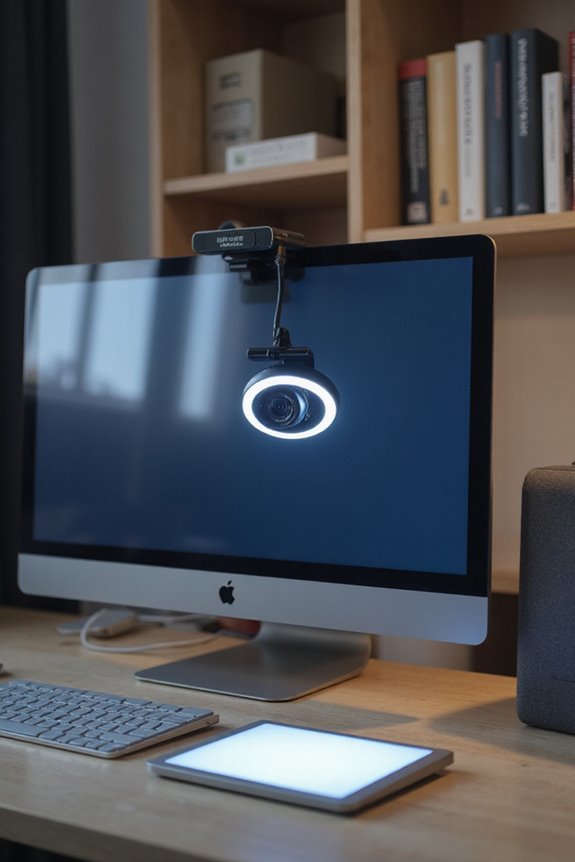
How Do I Improve My Webcam Video Quality?

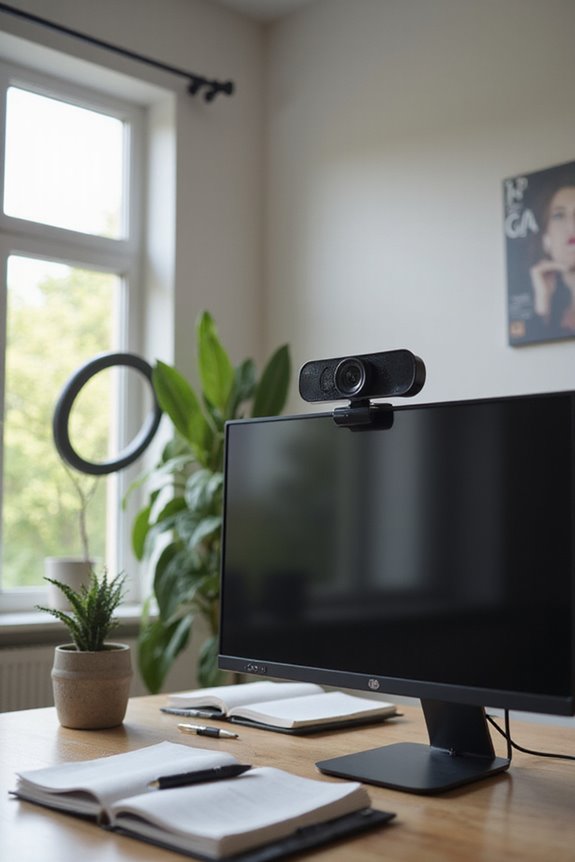
Improving webcam video quality is vital for clear communication in virtual meetings or streaming. First, I recommend adjusting your webcam settings to achieve the highest resolution and frame rate suitable for your needs. Next, optimizing your lighting can dramatically enhance your appearance on screen. Additionally, the background and webcam placement are significant factors that can influence the overall quality. There are also hardware upgrades and software enhancements to take into account, which can further elevate your video experience.
Key Takeaways
- Adjust webcam settings to the highest resolution, ensuring manual controls for brightness, contrast, and white balance for optimal image quality.
- Optimize lighting by using multiple sources at a 45° angle to minimize shadows and achieve a natural look.
- Choose a solid-colored background that contrasts with your clothing, placed at least twice the distance from the camera for depth.
- Position the webcam at eye level or slightly above, keeping it at arm’s length for balanced composition and clear visibility.
- Consider upgrading to a high-quality external webcam and maintain it by regularly cleaning the lens and checking connections.
Adjust Webcam Settings
You may be interested

When it comes to improving your webcam video quality, adjusting the settings is an essential first step. I always start by ensuring my webcam is set to its highest supported resolution, like 1080p or 4K, for those clear images we all crave. It’s important to make manual adjustments rather than relying on automatic settings, as they can lead to inconsistent quality.
Next, I match the frame rate to the application’s requirements; typically, 30 FPS works well for most needs. Tweaking brightness, contrast, and white balance further enhances image quality. Additionally, consider the webcam’s low light performance to ensure clarity in various lighting conditions. By taking these steps, you create a more professional and engaging video experience, allowing you to connect better with your audience. Let’s explore these settings and elevate your video presence!
Optimize Lighting
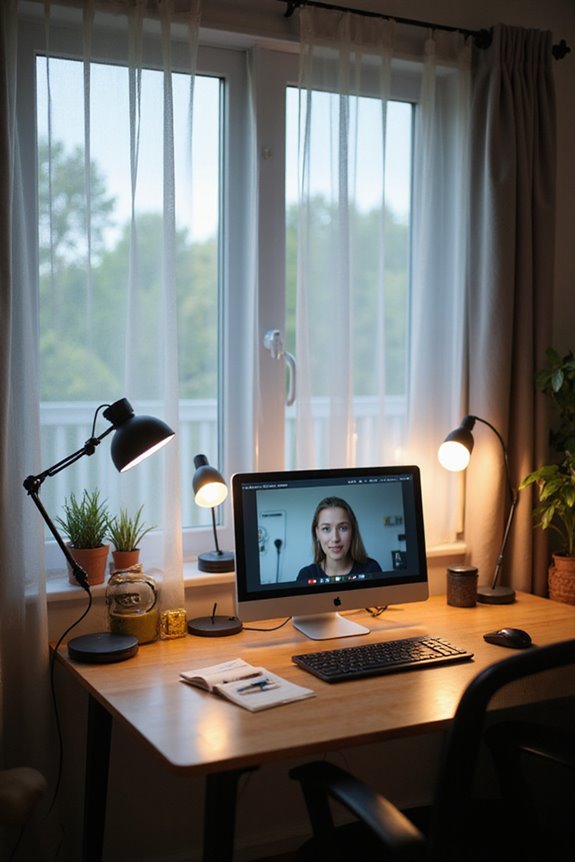
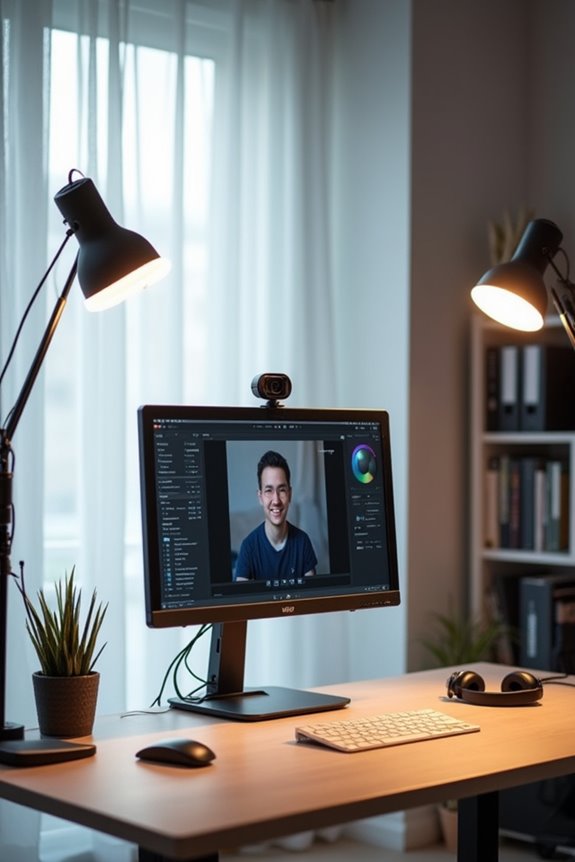
Optimizing lighting can greatly enhance your webcam video quality, complementing the adjustments you’ve made to your camera settings. To achieve the best results, consider employing various lighting techniques. Position your lights at a 45° angle from the camera and make sure they’re above face level for the best illumination balance.
Using multiple light sources can help distribute light evenly and minimize shadows. If harsh light is an issue, materials like wax paper can soften it for a natural appearance. Aim for daylight bulbs, as they mimic natural sunlight effectively. Remember, avoid direct sunlight behind you to prevent backlighting, and experiment with setups until you find what works best for your space. Your video quality will noticeably improve with the right lighting adjustments.
Recommended Products

New Adjustable Multifunctional Stand : 2025new upgraded ring light, using a new design concept. Perfectly circumvent the traditional clip-on ring light poor fixity and screen unfriendly problems. With a stretchable horizontal plate, 2-2.5 inches, it can perfectly match notebook & desktop computers and securely fix on straight or curved screens, and the main body of the stand adopts an adjustable design, 6.5-8.5inch, providing solutions for a wider range of usage scenarios
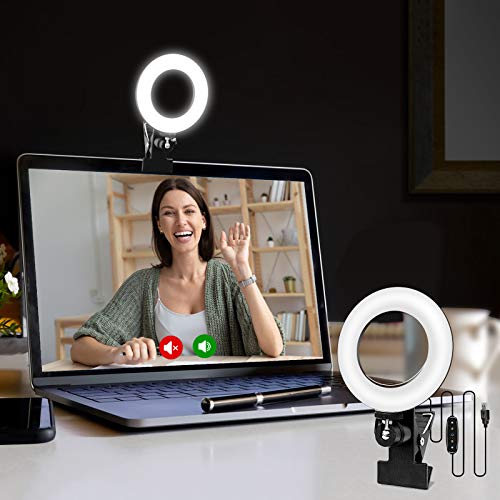
【ADJUSTABLE TEMPERATURE AND BRIGHTNESS】Our video conference lights have 3 color temperatures (white light/warm light/natural light) which are 3200k-6800k, 5 levels of brightness adjustment, and 48 LED lamp beads with 10W brightness. Easily change your ideal lighting with the switch, to make your skin more perfect and more suitable your environment.

【Universal Clip-On Design for Laptop & Desktop Screens】 This ring light for computer can attach smoothly to screens ≤ 2.5cm (0.98in) thick, perfect for laptops and desktop monitors. Clip light sturdy clip keeps it stable for calls, online work,streaming, or content creation, no extra stands needed.
Improve Video Background
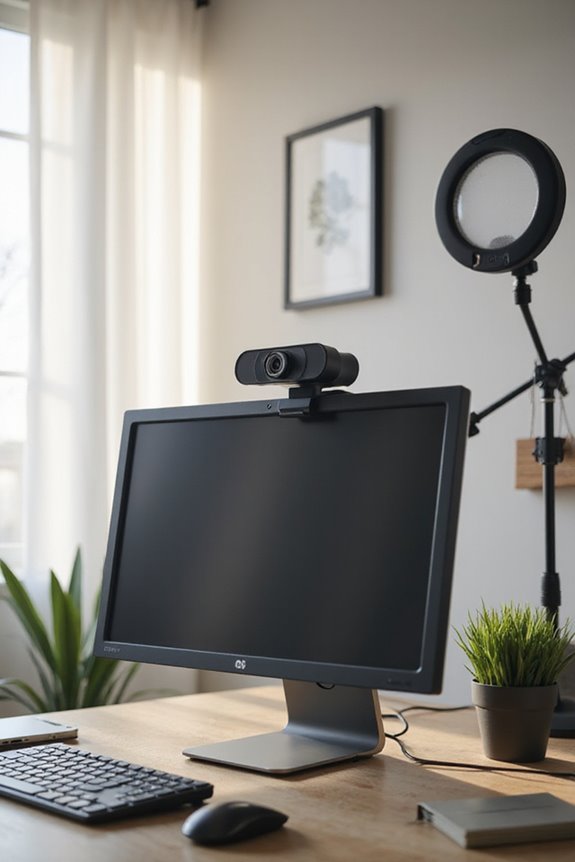
Improving your video background can considerably enhance the overall quality of your webcam sessions. To achieve effective background separation, place your backdrop at least twice the distance from the camera. This creates depth and clarity. I recommend using a plain, solid-colored background; it not only improves detection accuracy but also minimizes distractions. High-resolution backgrounds—ideally 1920 x 1080 pixels—are essential for a crisp appearance. Ascertain there’s a clear contrast between your clothing and the background to maintain a polished look. Finally, keep the background aligned with the camera to present a professional image. By focusing on these details, you’ll foster a more engaging environment that resonates with your audience.
Recommended Products

Choose Your Perfect Backdrop: Select from multiple sizes (5x7 ft, 6x9 ft, 10x8 ft, 10x12 ft, 10x20 ft) and colors (White, Black, Green) to suit your needs. Please confirm your desired color and size before purchase. (Note: Stand not included)


Select Proper Webcam Placement
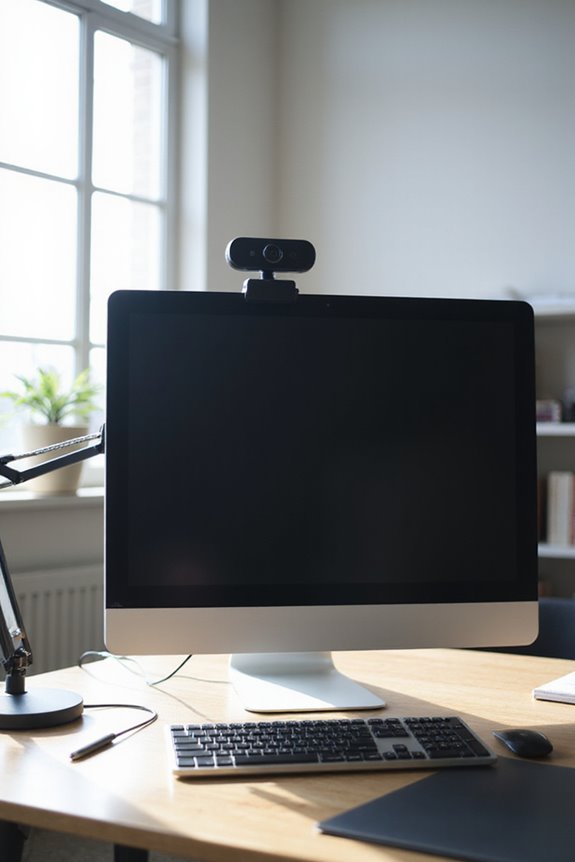
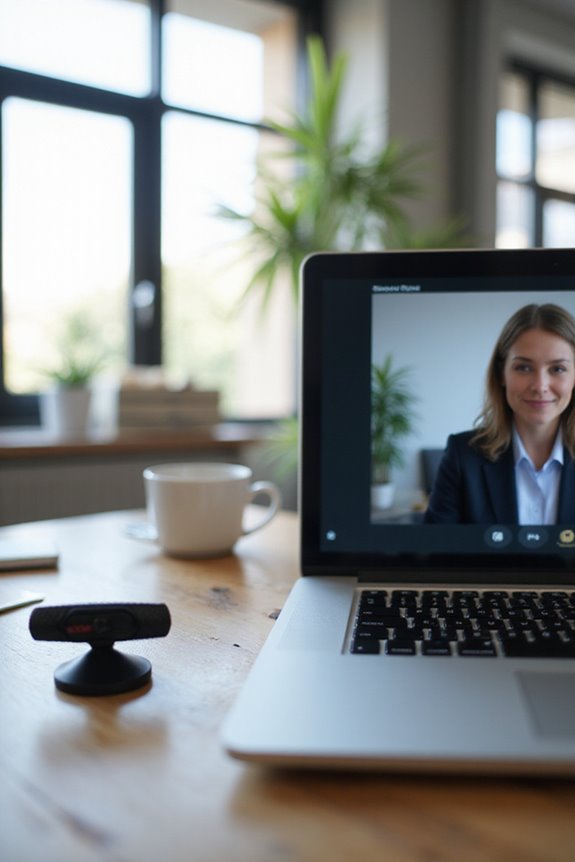
Selecting the right webcam placement is a critical step in enhancing the quality of your video calls. To achieve the best results, adjust the camera angle to eye level or slightly above, tilting it downwards for a more flattering view. This prevents distortion and the unflattering double chin effect.
In terms of distance management, keeping the webcam at least an arm’s length away provides a clear view while ensuring you’re well-framed. Aim for a balanced composition by including a little space above your head and capturing your shoulders. A stable setup, such as using a tripod or a sturdy surface, helps maintain your webcam’s position, allowing for consistent angle adjustments without unnecessary movement during your calls.
Recommended Products
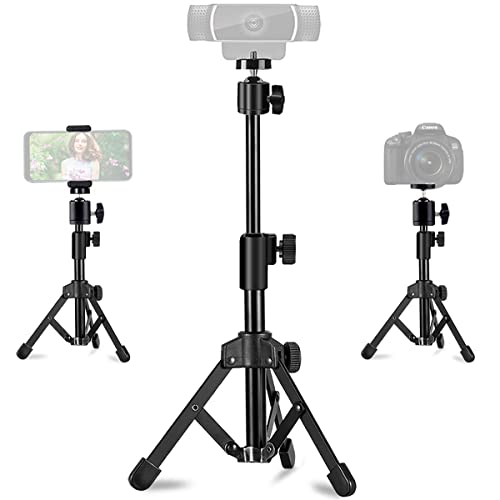
【Super Sturdy and Durable】Unlike other shaky webcam stands, JCWINY webcam tripod stand is made of strong metal and highly-durable ABS plastic, and designed with non-slip rubber pads to ensure the tripod remains stable, offer maximum stability for your devices avoiding annoying bouncing while filming or surfing and protects your valuable device from tipping over.

Compatibility and Stability Note: This webcam stand suit only for webcams with standard 1/4" screw hole. For Logitech BRIO/MX BRIO webcams, detach the included computer mounting clip/magnetic mount to access the standard 1/4” screw hold located at the base, enabling compatibility with InnoGear webcam stand mount. For maximum stability and load capacity, please install without the gooseneck or bend the gooseneck into a straight form to make the center of gravity centered.

Compatibility Note: For Logitech BRIO/MX BRIO webcams, detach the included computer mounting clip/magnetic mount to access the standard 1/4” screw hold located at the base, enabling compatibility with InnoGear webcam stand mount.
Upgrade or Maintain Hardware
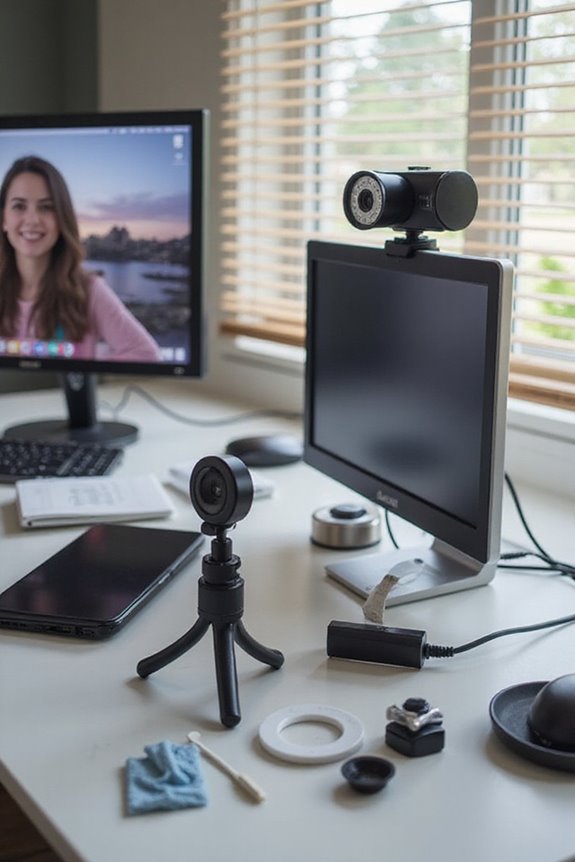
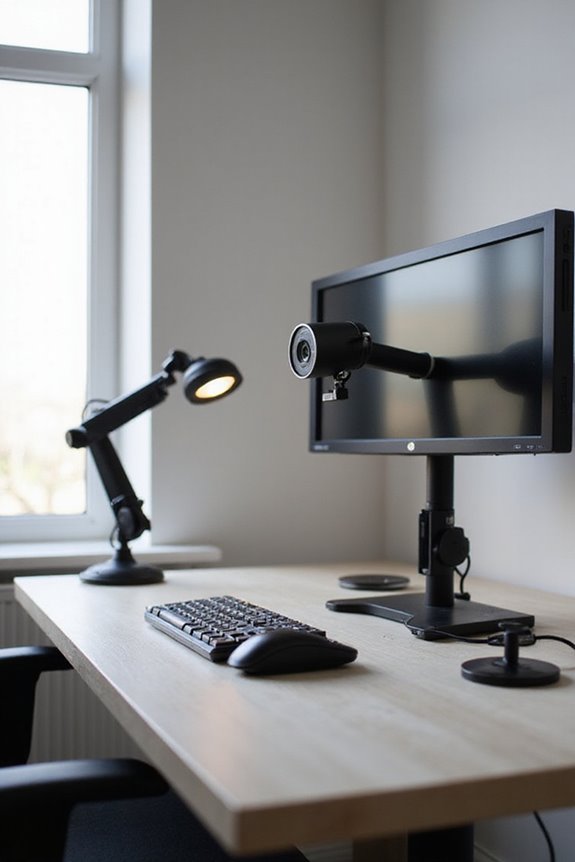
Upgrading or maintaining your webcam hardware can greatly impact the quality of your video calls and broadcasts. If you’re using a built-in camera, consider investing in an external webcam for better resolution and sensor quality. Popular models like the Logitech C920 and BRIO offer excellent features, but budget considerations are important—prices range from $50 to over $200.
Before purchasing, check hardware compatibility with your operating system and any software you’ll be using. Regular maintenance is also key; cleaning the lens and ensuring proper connections can enhance performance. Whether you’re streaming, recording, or attending meetings, selecting the right equipment will make a noticeable difference in your video quality.
Recommended Products

Compatible with Nintendo Switch 2’s new GameChat mode

The usb webcam is powered by a high-performance CMOS image sensor, ensuring you always see crisp and clear image. | 1080p resolution at 30 frames per second delivers smooth and lag-free video output—perfect for professional-grade video calls.

Reliable 2K Webcam without Distortion- EMEET Webcam C100 2K delivers a clear, stable and distraction-free video experience. It features 2K 30FPS for smooth, lag-free meetings and classes. Fixed focus avoids autofocus hunting, keeping images sharp within 12-40 inches without blur shifts or interruptions. A good field of view prevents distortion and unwanted background clutter. This web cam works as a dependable computer camera and camera for computer setups, ensuring clean professional video.
Use Software Enhancements
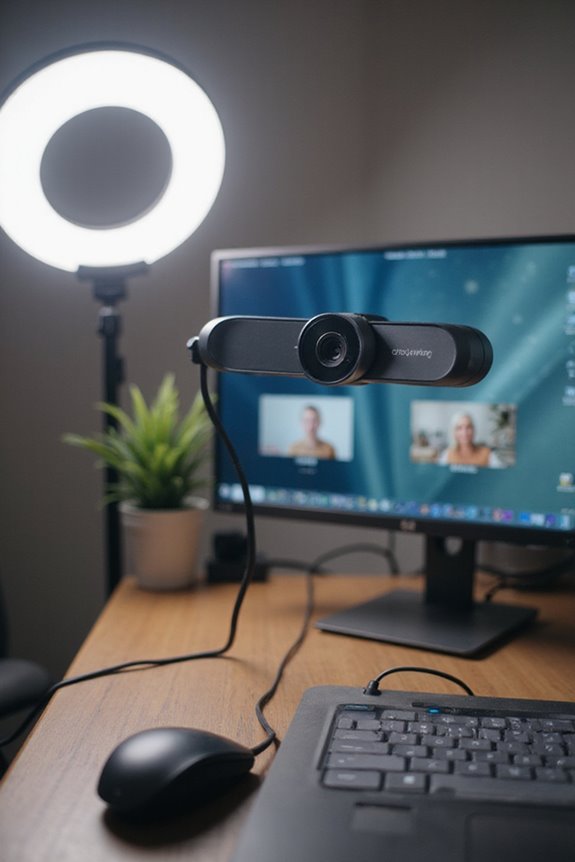
Having the right hardware is just the beginning of enhancing your webcam video quality. To truly elevate your visuals, using specialized webcam software is essential. Programs like YouCam and XSplit VCam come equipped with advanced features for real-time processing, ensuring your video looks sharp and professional.
You can utilize video filters and color correction tools to adjust brightness and contrast automatically, enhancing clarity in various lighting conditions. Noise reduction and haze compensation further improve your footage, making it more appealing. AI-driven enhancements can upscale your videos to higher resolutions, adding vibrancy to your colors. By leveraging these software capabilities, you can create a polished, engaging video experience that resonates with your audience.
Recommended Products

【Full HD 1080P Webcam】Powered by a 1080p FHD two-MP CMOS, the NexiGo N60 Webcam produces exceptionally sharp and clear videos at resolutions up to 1920 x 1080 with 30fps. The 3.6mm glass lens provides a crisp image at fixed distances and is optimized between 19.6 inches to 13 feet, making it ideal for almost any indoor use.

Compatible with Nintendo Switch 2’s new GameChat mode

UNCOMPROMISED VIDEO QUALITY: Complete your workspace setup with a 2K QHD webcam that includes a Sony image sensor, offering crystal clear, vivid and vibrant picture clarity.